pm uninstall -k --user 0 which
disables an app for your profile but keeps the file on the phone. Restore any time with
adb shell cmd package install-existing <package>.
How it works
You need a computer, a USB cable, and about 10 minutes. Follow the steps below, or paste our prompt into an AI tool and let it do the technical parts.
This unlocks USB debugging so your computer can talk to the phone.
Show me how (Samsung / most Android)
- Open Settings.
- Scroll down, tap About phone.
- Tap Software information.
- Find Build number and tap it 7 times quickly.
- Enter your PIN if asked.
- You'll see: "Developer mode has been enabled."
- Go back to Settings — Developer options now appears near the bottom.
- Open it, scroll to Debugging, turn on USB debugging, tap OK.
ADB (Android Debug Bridge) is a small tool from Google — no Android Studio needed. Admin rights are not required.
Windows (PowerShell)
- Download Platform Tools ZIP from Google.
- Extract it to a folder like
C:\platform-tools. - Open that folder, hold Shift, right-click blank space, choose Open PowerShell window here.
- Type:
.\adb.exe --version— you should see "Android Debug Bridge version…"
Important: In PowerShell you must type .\adb.exe (with the .\ prefix), not just adb. All Windows commands below use this format.
macOS
- Install via Homebrew:
brew install android-platform-tools - Or download the ZIP from the same Google link above and extract.
- Open Terminal, run:
adb version
Linux
sudo apt install adb(Debian/Ubuntu) orsudo dnf install android-tools(Fedora)- Or download from Google and extract.
- Run:
adb version
Plug in the USB cable. A prompt will appear on the phone — tap Allow. Check "Always allow from this computer" so it doesn't ask again.
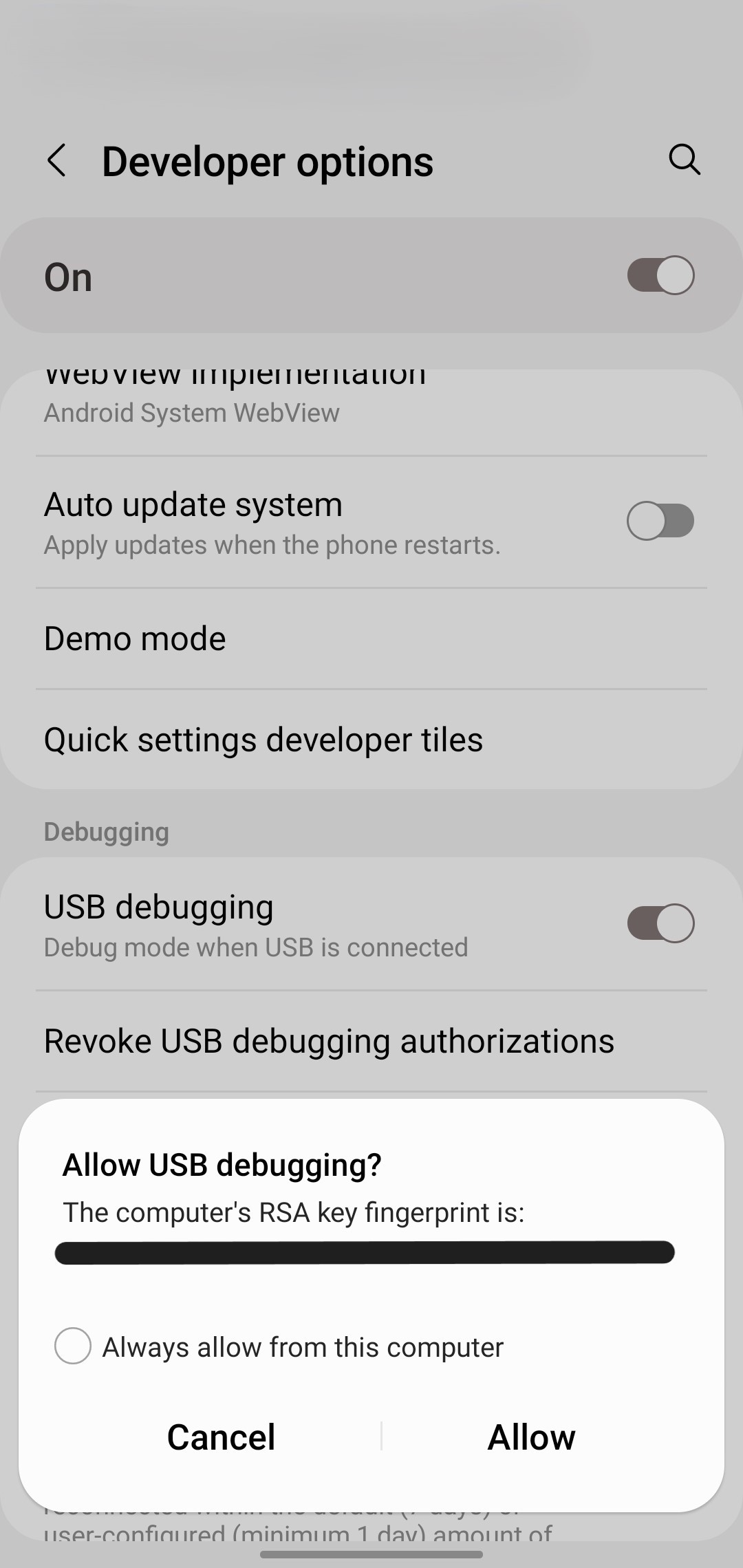
adb devices shows unauthorized — look at your phone screen and tap Allow on the USB debugging prompt. If the prompt doesn't appear, unplug the cable, replug it, and run adb devices again.Show me the commands
First, verify the phone is connected:
Windows PowerShell:
.\adb.exe devices
macOS / Linux:
adb devices
You should see your device listed as device (not unauthorized).
Then copy the package list to your clipboard:
Windows PowerShell:
.\adb.exe shell pm list packages -f | Set-Clipboard
macOS Terminal:
adb shell pm list packages -f | pbcopy
Linux:
adb shell pm list packages -f | xclip -sel clip
Now paste it into the box below.
Paste the output below, click Analyze, adjust the checkboxes, then copy the commands and run them in your terminal.
Paste package list here
Review packages
| Remove | Package | Path | Suggestion | Category | Note |
|---|
Export commands
Commands use -k (keep app data) so you can restore easily if needed.
What to do next
- Make sure the phone is still connected. Run
.\adb.exe devices(Windows) oradb devices(macOS/Linux). - Paste the commands above into PowerShell (Windows) or Terminal (macOS/Linux). Do not run
adb shellfirst — paste them directly. - Each command prints
SuccessorFailure.
Note: Some packages report "Success" but reappear on the next scan. This is normal — certain manufacturer-protected apps resist removal and cannot be fully uninstalled without root access. You can safely ignore these. - Test the phone — make a call, open the camera, send a text.
- If something broke, restore it immediately:
.\adb.exe shell cmd package install-existing com.example.package(macOS/Linux: useadbinstead of.\adb.exe) - When you're done, turn off USB debugging: Settings → Developer options → USB debugging → OFF.
Parental controls
Removing apps is a good start, but it does not block the internet or prevent new installs. Pair this tool with Google Family Link for app approval, web filtering, and screen time.
- Set up a supervised child Google account in your family group.
- Install Family Link on your phone and the child's device.
- Require approval for new Play Store installs.
- Turn on web and content filters (options vary by region).
- Review Install unknown apps permissions on the child device.
Get started with Family Link · Setup instructions · Help center
Tested devices
| Device | Model | Android | Status |
|---|---|---|---|
| Samsung Galaxy S10+ | SM-G975U1 | 12 | Verified |
| Samsung Galaxy S23 / S24 / S25 | — | 14 – 15 | Rules from research |
| Google Pixel 8 / 9 | — | 14 – 16 | Rules from research |
| OnePlus 12 / 13 | — | 14 – 15 | Rules from research |
Help us test! Run the tool on your phone and submit a device report so we can mark more devices as verified.